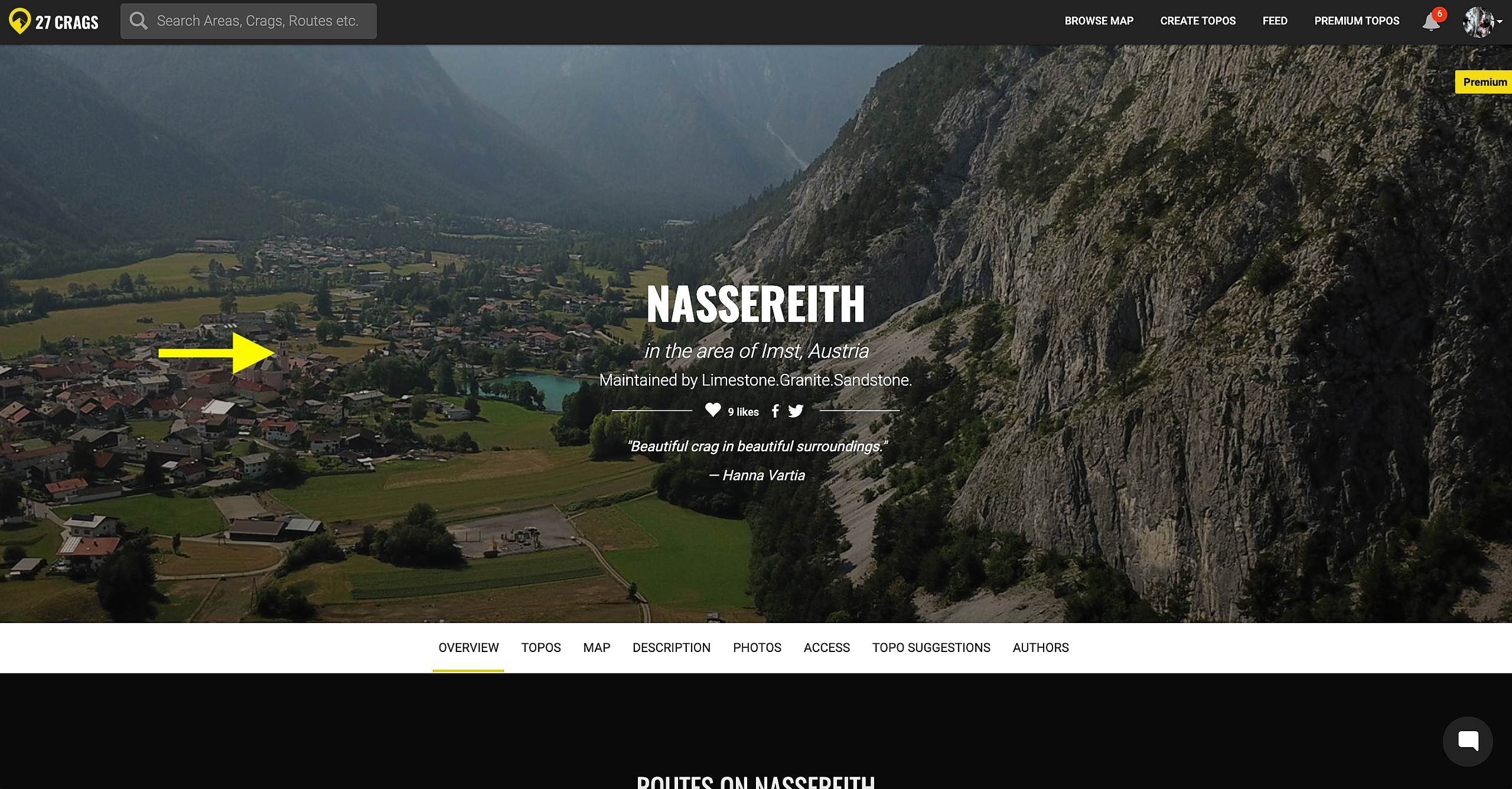

If you can't see all the crags on the map, the first thing to check is if you have any filters activated. If all the filters are on and you can see the crag in the website but not on the app, read on.
Mandatory content for in-app topos
In order to provide a nice user experience with the 27 Crags app, the apps show only the crags that have both of the following content:
1. Location
2. Climbing image(s) OR topo image(s)
How to add a topo from the website to the app
If you would like a crag to show up on the app, just upload a picture and add a location. This way the crag will appear also in the app.
When you have added a picture, make sure that it gets added as the crag cover picture. As long as the background of the crag shows grey, it won't show in the app.
If the background of the topo shows grey even after you've added a photo, do the following:
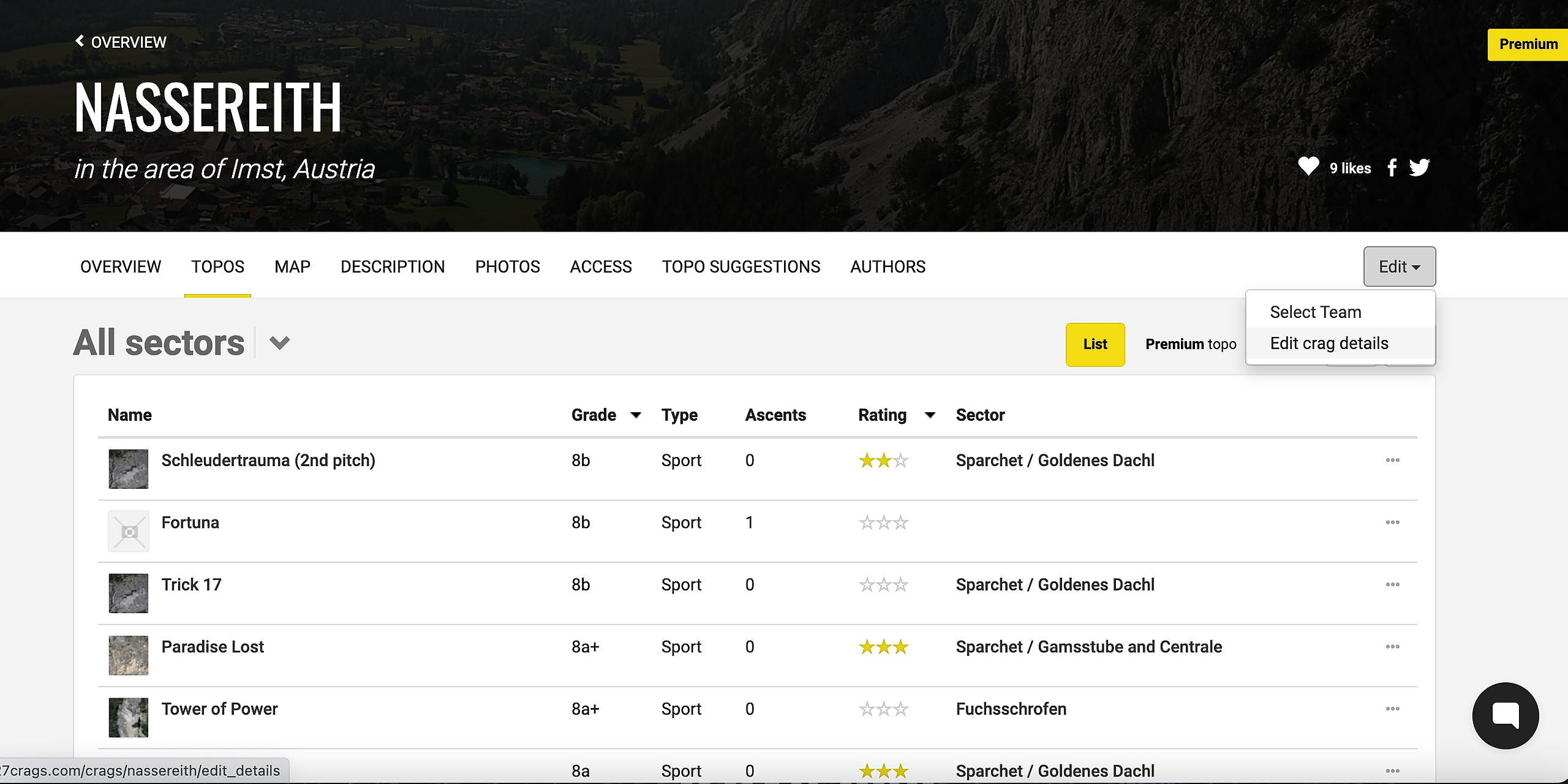
1. Click "topos" on the crag main view
2. Click the edit button on the right and click "Edit crag details".
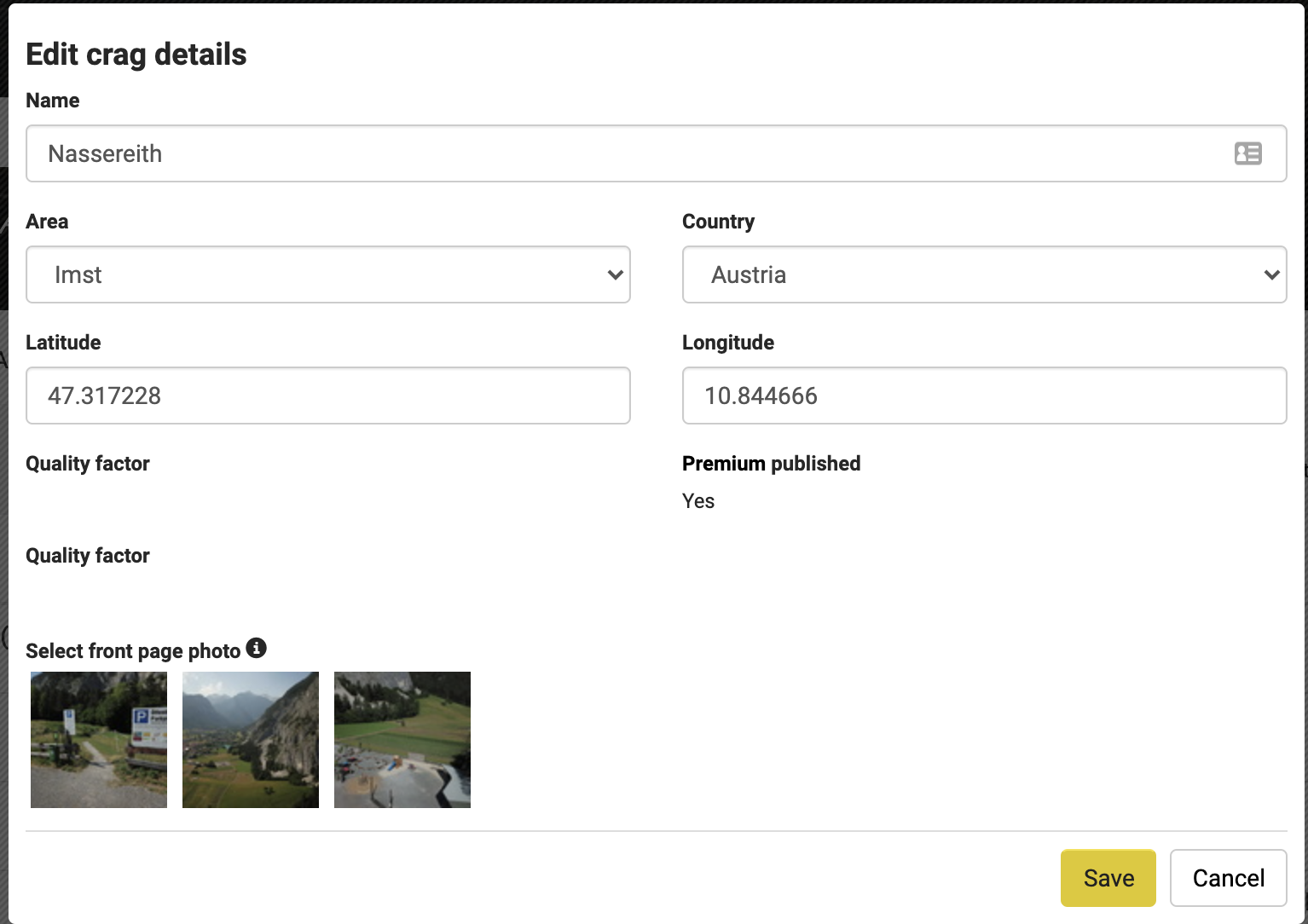
3. Scroll to the bottom and choose a pic under "select front page photo"
4. Press save
Now the picture should be the background of the topo, and the crag shows in the app too!